Mastering Claude Cowork Skills System: The Complete Guide
Ever wondered why Claude Cowork creates such polished documents, presentations, and spreadsheets? The secret lies in a powerful but often overlooked feature: the Skills system. This comprehensive guide reveals exactly how Skills work under the hood and how you can leverage them for professional-quality outputs.
Table of Contents
- What Are Skills?
- The Skills Architecture
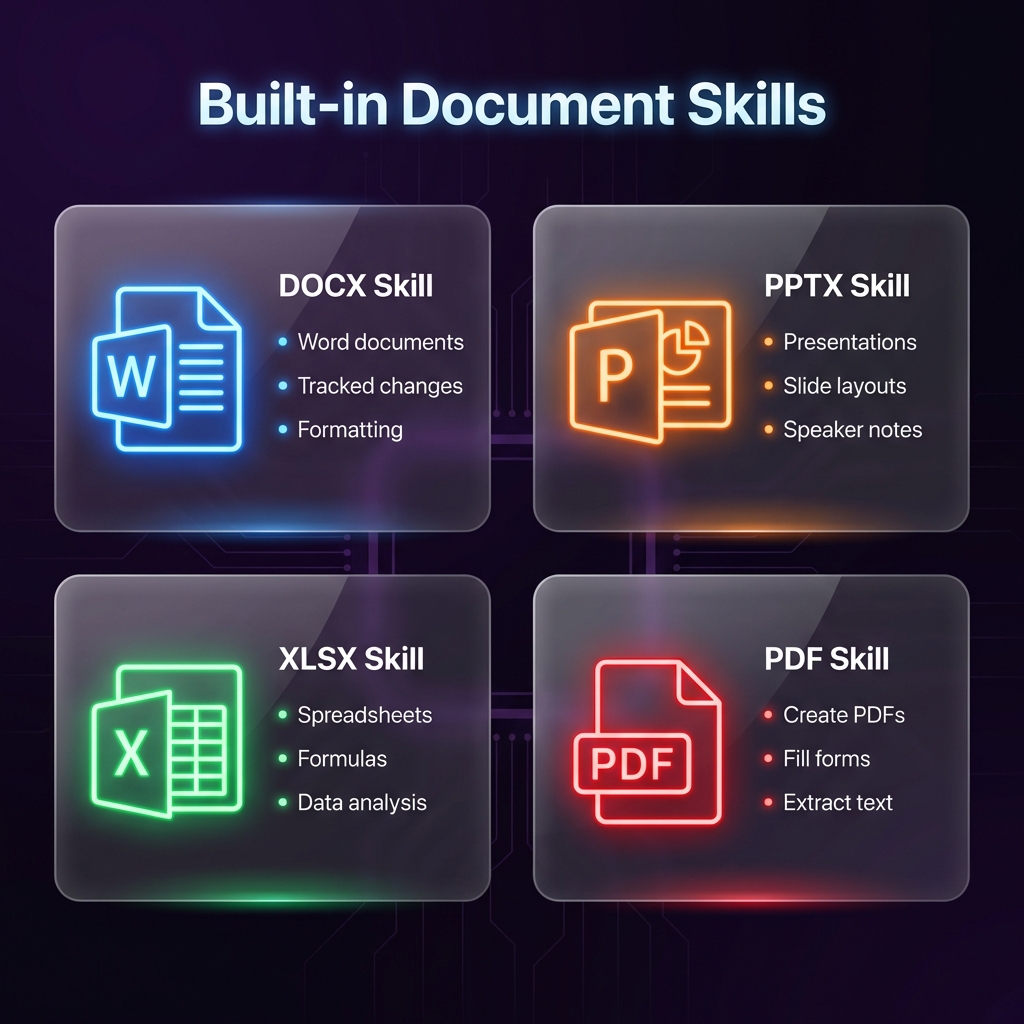
- Built-in Document Skills
- How Skills Are Activated
- Understanding the SKILL.md Format
- User Skills and Customization
- Best Practices for Working with Skills
- Troubleshooting Common Issues
What Are Skills?
The Hidden Power Behind Quality Output
Skills are essentially Claude's instruction manuals for specific types of tasks. They represent the condensed wisdom of extensive trial and error—best practices that have been refined through countless iterations to help Claude produce the highest-quality outputs possible.
Think of Skills as expert knowledge packages. When you ask Claude to create a Word document, it doesn't just generate text and hope for the best. Instead, it first consults the DOCX skill, which contains detailed instructions on:
- Proper document structure and formatting
- How to handle tracked changes and comments
- Best practices for accessibility and readability
- Platform-specific considerations
Why Skills Matter
Without Skills, Claude would approach every document creation task from scratch. With Skills, it benefits from pre-built expertise that ensures:
- Consistency: Every document follows proven best practices
- Quality: Outputs meet professional standards
- Efficiency: No need to reinvent the wheel for common tasks
- Reliability: Fewer errors and formatting issues
Key Insight from the System Prompt: Claude is instructed to always read the appropriate SKILL.md file before creating any document. This is why the same prompt can produce vastly different quality depending on whether Skills are properly utilized.
The Skills Architecture
Directory Structure
Claude Cowork's Skills system is organized in a hierarchical folder structure within the skillsDir directory:
skillsDir/
├── skills/
│   ├── docx/
│   │   └── SKILL.md
│   ├── pptx/
│   │   └── SKILL.md
│   ├── xlsx/
│   │   └── SKILL.md
│   ├── pdf/
│   │   └── SKILL.md
│   ├── user/
│   │   └── [custom skills]
│   └── example/
│       └── [additional examples]
Three Types of Skills
1. Core Document Skills
These are the foundational skills for creating professional documents. They're heavily optimized and always available:
docx- Word document creationpptx- PowerPoint presentationsxlsx- Excel spreadsheetspdf- PDF generation and manipulation
2. User Skills
Located in skills/user/, these are custom skills that users can add to extend Claude's capabilities. They might include:
- Company-specific templates
- Industry-specific formatting requirements
- Custom workflow automations
3. Example Skills
Found in skills/example/, these provide additional reference implementations that may or may not be enabled. They serve as learning resources and templates for creating custom skills.
Built-in Document Skills
DOCX Skill: Word Document Creation
The DOCX skill enables Claude to create professional Word documents with:
Capabilities:
- Proper heading hierarchy and document structure
- Tracked changes and revision management
- Comments and annotations
- Text formatting (bold, italic, underline, colors)
- Tables, lists, and nested structures
- Headers, footers, and page numbering
- Style preservation when editing existing documents
When Claude uses this skill:
- "Write a document about..."
- "Create a report on..."
- "Draft a proposal for..."
- "Fix/modify/edit my Word file"
PPTX Skill: Presentation Building
The PPTX skill handles PowerPoint presentations with:
Capabilities:
- Slide layouts and master templates
- Speaker notes for each slide
- Animations and transitions (when appropriate)
- Image and chart placement
- Consistent visual styling
- Professional color schemes
When Claude uses this skill:
- "Make a presentation about..."
- "Create slides for..."
- "Build a pitch deck for..."
XLSX Skill: Spreadsheet Manipulation
The XLSX skill manages Excel spreadsheets with:
Capabilities:
- Formulas and calculations
- Data formatting and conditional formatting
- Charts and visualizations
- Multiple worksheet handling
- Formula recalculation
- Data analysis features
When Claude uses this skill:
- "Create a spreadsheet with..."
- "Analyze this data and..."
- "Build a budget template..."
PDF Skill: Document Finalization
The PDF skill handles PDF operations with:
Capabilities:
- Creating PDFs from scratch
- Filling PDF forms programmatically
- Text extraction
- Document merging and splitting
- Maintaining formatting integrity
When Claude uses this skill:
- "Create a PDF report..."
- "Fill in this PDF form..."
- "Extract text from this PDF..."
How Skills Are Activated
The Read-Before-Create Workflow
Skills don't activate automatically—Claude must explicitly read the SKILL.md file before starting work. The system prompt emphasizes this repeatedly:
"Please begin the response to each and every request in which computer use is implicated by using the
file_readtool to read the appropriate SKILL.md files."
This creates a specific workflow:
- Receive Request: User asks for document creation
- Identify Skills: Claude determines which skills are relevant
- Read SKILL.md: Claude reads the skill file(s) into context
- Apply Best Practices: Claude follows the skill's instructions
- Create Output: The final document reflects skill guidance
Automatic Detection
Claude automatically detects when to use Skills based on keywords in your request:
| Trigger Words | Skill Activated |
|---|---|
| "write a document", "create a report", "draft a..." | DOCX |
| "make a presentation", "create slides" | PPTX |
| "create a spreadsheet", "make an Excel file" | XLSX |
| "create a PDF", "fill this form" | |
| "save", "file", "document" | Context-dependent |
Combining Multiple Skills
Complex tasks often require multiple skills. For example:
Request: "Create an AI image based on the document I uploaded, then add it to the doc."
Claude would read:
- The DOCX skill (for document editing)
- The image generation skill (if available as a user skill)
The system is designed for "promiscuous" skill usage—Claude should use any and all skills that seem relevant.
Understanding the SKILL.md Format
What's Inside a SKILL.md File
Each SKILL.md file contains structured guidance for Claude:
# [Skill Name]

## Overview
Brief description of what this skill enables.

## When to Use
Specific triggers and scenarios where this skill applies.

## Best Practices
1. Step-by-step instructions
2. Formatting guidelines
3. Common patterns to follow

## Common Mistakes to Avoid
- Don't do X
- Avoid Y pattern

## Examples
Concrete examples of proper usage.

## Libraries/Tools
Required dependencies or tools for this skill.
Key Components
1. Clear Triggers Skills define exactly when they should be activated, preventing confusion about which skill applies.
2. Step-by-Step Instructions Detailed procedures ensure consistent output quality regardless of the specific request.
3. Anti-Patterns Lists of what NOT to do help Claude avoid common mistakes.
4. Working Examples Concrete code or format examples provide reference implementations.
User Skills and Customization
Creating Your Own Skills
While core skills handle common document types, you can extend Claude's capabilities with custom skills for:
- Industry-specific templates: Legal documents, medical forms, academic papers
- Company branding: Letterheads, branded presentations, styled reports
- Workflow automation: Custom processing pipelines, multi-step operations
- Domain expertise: Specialized terminology, formatting requirements
Skill Template Structure
# [Your Skill Name]

## Purpose
What this skill helps Claude do.

## Activation Triggers
Keywords or contexts that should activate this skill.

## Required Actions
1. First step Claude should take
2. Second step with specific details
3. Verification steps

## Output Format
Expected structure of the output.

## Quality Checklist
- [ ] Check 1
- [ ] Check 2
- [ ] Check 3

## Notes
Additional context or warnings.
Installing User Skills
User skills should be placed in:
skillsDir/skills/user/[skill-name]/SKILL.md
Claude will automatically discover and use them when relevant triggers are detected.
Best Practices for Working with Skills
1. Be Explicit About Document Types
Instead of:
"Create a file with my notes"
Say:
"Create a Word document (.docx) with my meeting notes"
This ensures Claude activates the correct skill.
2. Mention Output Requirements
If you need specific formatting:
"Create a presentation with speaker notes for each slide"
This prompts Claude to utilize all relevant skill features.
3. Combine Skills When Appropriate
For complex tasks:
"Read the PDF report, extract the key data, and create an Excel spreadsheet with analysis"
Claude will chain skills: PDF → data extraction → XLSX
4. Verify Skill Application
After Claude creates a document, you can ask:
"Did you follow the SKILL.md best practices for this document?"
This prompts Claude to verify its work against skill guidelines.
5. Request Skill-Specific Features
Each skill has unique capabilities:
"Add tracked changes so I can review your edits" (DOCX skill feature) "Include speaker notes for each slide" (PPTX skill feature) "Add formulas for automatic calculation" (XLSX skill feature)
Troubleshooting Common Issues
Document Formatting Issues
Problem: Output doesn't match expected format
Solution: Explicitly state the document type:
"Create a properly formatted Word document (.docx) with..."
Missing Skill Features
Problem: Advanced features not being used
Solution: Specifically request them:
"Use tracked changes, include a table of contents, and add page numbers"
Inconsistent Quality
Problem: Similar requests produce different quality outputs
Solution: Ensure Claude reads the skill first:
"Before creating the presentation, make sure to follow PowerPoint best practices"
Skills Not Found
Problem: Custom skill isn't being used
Solution: Verify the skill is in the correct directory and has a valid SKILL.md file with clear trigger words.
Key Takeaways
- Skills are Claude's secret weapon for producing professional-quality documents
- Four core skills cover most document needs: docx, pptx, xlsx, pdf
- "Read before create" is the fundamental principle of skill usage
- User skills can extend capabilities for specialized needs
- Explicit requests help ensure the right skills are activated
- Multiple skills can chain for complex, multi-format tasks
The Skills system represents one of the most powerful but least understood features of Claude Cowork. By understanding how Skills work, you can ensure every document you create benefits from Claude's accumulated best practices.
Related Guides
- What is Claude Cowork? - Complete introduction
- Getting Started - First-time setup
- Skills and Connectors - Overview of extensions
- Best Use Cases - Practical examples
Last updated: January 14, 2026
This article is part of CoworkHow.com, an independent resource for Claude Cowork users. We are not affiliated with Anthropic.