Optimizing Cowork Workflows: TodoList & AskUserQuestion Tools Guide
Ever started a Cowork task only to realize halfway through that you misunderstood the requirements? Or wondered why Claude sometimes creates a detailed task list and other times jumps straight to work? The answers lie in two powerful but often misunderstood tools: AskUserQuestion and TodoList.
This guide reveals the optimal workflow sequence that Claude follows internally, and how you can leverage it for maximum productivity.
Table of Contents
- The Recommended Workflow Sequence
- Understanding AskUserQuestion
- Mastering the TodoList Tool
- The Verification Step
- When to Skip These Tools
- Practical Examples
- Common Mistakes to Avoid
- Tips for Better Results
The Recommended Workflow Sequence
Claude Cowork follows a specific sequence for optimal results:
AskUserQuestion → TodoWrite → Execute Tasks → Verify
This isn't just a suggestion—it's built into Claude's core operating instructions. Understanding this sequence helps you work more effectively with Cowork and get better results faster.
Why This Order Matters
- AskUserQuestion first: Prevents wasted effort on the wrong thing
- TodoWrite second: Creates a roadmap and enables progress tracking
- Execute third: Follows the plan systematically
- Verify last: Ensures quality and catches errors
Key Insight: Even requests that sound simple are often underspecified. Asking upfront prevents wasted effort on the wrong thing.
Understanding AskUserQuestion
What It Is
The AskUserQuestion tool allows Claude to gather user input through structured questions before starting any real work. It's designed to prevent the common problem of building something that doesn't match what the user actually wanted.
When Claude Uses It
Claude is instructed to always use AskUserQuestion before starting:
- Research tasks
- Multi-step tasks
- File creation
- Any workflow involving multiple steps or tool calls
The only exceptions are:
- Simple back-and-forth conversation
- Quick factual questions
- When you've already provided clear, detailed requirements
- When clarification was already done earlier in the conversation
Examples of Underspecified Requests
These requests trigger AskUserQuestion because they lack critical details:
| Request | Missing Information |
|---|---|
| "Create a presentation about X" | Audience, length, tone, key points |
| "Put together some research on Y" | Depth, format, specific angles, intended use |
| "Find interesting messages in Slack" | Time period, channels, topics, what "interesting" means |
| "Summarize what's happening with Z" | Scope, depth, audience, format |
| "Help me prepare for my meeting" | Meeting type, what preparation means, deliverables |
How to Make Requests More Specific
Instead of vague requests, provide details upfront:
❌ Vague Request:
"Create a presentation about our Q1 results"
✅ Specific Request:
"Create a 10-slide presentation about our Q1 results for the executive team. Focus on revenue growth, new customer acquisition, and key challenges. Keep the tone professional but optimistic. Include speaker notes for each slide."
By being specific, you skip the clarification step and Claude can start working immediately.
Mastering the TodoList Tool
What It Is
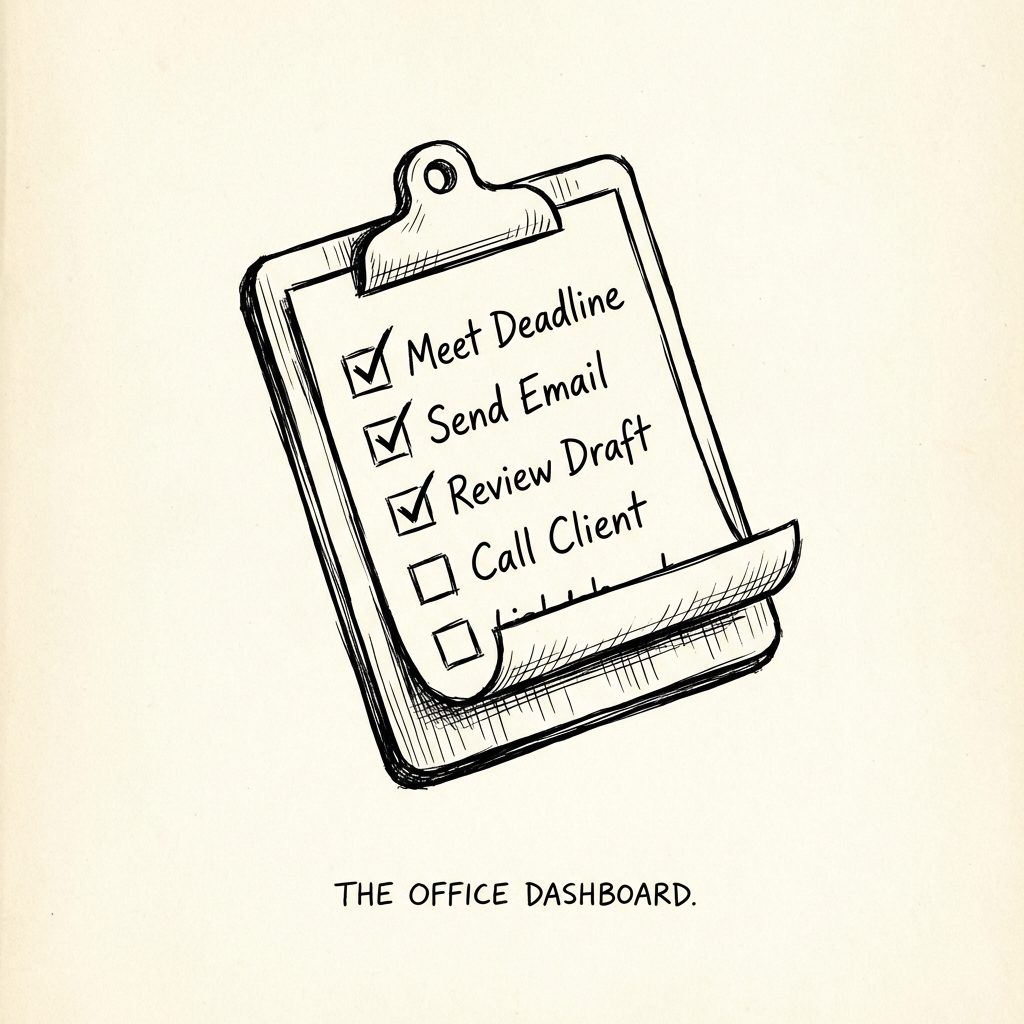
The TodoList tool (also called TodoWrite) creates a structured task list that tracks progress in real-time. In Cowork's interface, this renders as a beautiful widget showing completed, in-progress, and pending tasks.
When Claude Uses It
Here's a key insight from Claude's internal instructions:
Claude MUST use TodoWrite for virtually ALL tasks that involve tool calls.
This is mandatory, not optional. The only exceptions are:
- Pure conversation with no tool use (e.g., answering "what is the capital of France?")
- When you explicitly ask Claude not to use it
TodoList Task States
The TodoList uses three states:
| Symbol | State | Meaning |
|---|---|---|
[ ] | Pending | Task not yet started |
[/] | In Progress | Currently being worked on |
[x] | Completed | Task finished successfully |
Why the Widget Matters
The TodoList isn't just for Claude's internal organization—it's rendered as a user-facing widget that provides:
- Real-time progress visibility: See exactly where Claude is in the process
- Transparency: Understand what steps are involved
- Interruptibility: Know when you can safely pause or redirect
- Verification: Confirm all planned steps were completed
The Verification Step
Why Every Task Needs Verification
One of the most important but often overlooked aspects of Claude's workflow is the mandatory verification step:
Claude should include a final verification step in the TodoList for virtually any non-trivial task.
This isn't optional—it's built into the system design.
Types of Verification
Depending on the task, verification might include:
| Verification Type | When to Use |
|---|---|
| Fact-checking | Research tasks, data extraction |
| Programmatic math verification | Calculations, data analysis |
| Source assessment | Research reports, citations |
| Counterargument consideration | Analysis, recommendations |
| Unit testing | Code generation |
| Screenshots | UI/visual work |
| File diff generation | Document editing |
| Double-checking claims | Any factual content |
Subagents for Verification
Claude typically uses subagents (via the Task tool) for verification:
Claude should generally use subagents (Task tool) for verification.
This means a separate Claude instance reviews the work, providing an independent check that catches errors the primary Claude might miss.
When to Skip These Tools
Skip AskUserQuestion When:
- Simple conversation: Just chatting or asking factual questions
- Clear requirements: You've provided detailed, specific instructions
- Previous clarification: You already answered clarifying questions earlier
Skip TodoList When:
- Pure conversation: No tools needed to answer
- Explicit request: You specifically asked not to use it
- Trivial tasks: Single-step operations that don't need tracking
Examples of Tasks That Skip Both:
- "What is the capital of France?"
- "Explain quantum computing in simple terms"
- "What time is it in Tokyo?"
Practical Examples
Example 1: Document Organization
User Request:
"Organize the files in my Downloads folder"
Claude's Internal Process:
-
AskUserQuestion: "How would you like them organized? By date, type, project, or something else? Should I create new folders or use existing ones? Are there any files that should not be moved?"
-
TodoWrite:
[ ] Scan Downloads folder contents [ ] Categorize files by type [ ] Create organization folders [ ] Move files to appropriate folders [ ] Generate summary report [ ] Verification: Review organization and count files -
Execute: Work through each task systematically
-
Verify: Confirm all files were moved correctly
Example 2: Report Creation
User Request:
"Create a quarterly report from my sales data"
Claude's Internal Process:
-
AskUserQuestion: "What format should the report be in (Word, PDF, etc.)? Who is the audience? What time period? Which metrics should be highlighted?"
-
TodoWrite:
[ ] Read and analyze sales data files [ ] Calculate key metrics (revenue, growth, etc.) [ ] Identify trends and insights [ ] Create report structure [ ] Write executive summary [ ] Add visualizations and charts [ ] Format final document [ ] Verification: Check calculations and review content -
Execute: Complete each step
-
Verify: Double-check all calculations and facts
Example 3: Quick Task (No Tools Needed)
User Request:
"What's a good structure for a project proposal?"
Claude's Response: (Answers directly without AskUserQuestion or TodoList since this is pure information, not file/tool work)
Common Mistakes to Avoid
Mistake 1: Providing Vague Requirements
Problem: Claude has to ask many clarifying questions, slowing you down.
Solution: Be specific upfront about format, audience, scope, and deliverables.
Mistake 2: Skipping the TodoList
Problem: You can't see progress, and Claude might miss steps.
Solution: Let Claude create the task list—it helps both of you track progress.
Mistake 3: Ignoring Verification
Problem: Errors in the final output go unnoticed.
Solution: Always include verification steps, especially for important work.
Mistake 4: Interrupting Mid-Task
Problem: Claude loses context and may need to restart.
Solution: Wait for natural breakpoints (completed tasks) before redirecting.
Mistake 5: Not Reviewing the Task List
Problem: Claude might plan something different than what you expected.
Solution: Review the TodoList before Claude starts executing to catch misunderstandings early.
Tips for Better Results
1. Front-Load Your Requirements
The more detail you provide upfront, the faster Claude can start working:
"Create a Word document summarizing the attached research paper.
Format: Executive summary (1 paragraph) + Key findings (bullet points) +
Methodology overview (1 paragraph) + Recommendations (numbered list).
Audience: Non-technical stakeholders.
Length: 2 pages maximum."
2. Ask for the Task List First
If you want to review the plan before execution:
"Before you start, show me your task list for this project"
3. Request Specific Verification
Tell Claude what to verify:
"After creating the report, verify all financial calculations by checking them against the source data"
4. Use Natural Breakpoints
Structure complex requests as phases:
"Phase 1: Analyze the data and create a summary. Show me the results before moving to Phase 2: Creating visualizations."
5. Leverage Progress Visibility
Watch the TodoList widget to:
- Understand what Claude is doing
- Estimate remaining time
- Identify good moments to pause or redirect
Key Takeaways
- Follow the sequence: AskUserQuestion → TodoWrite → Execute → Verify
- Be specific: Detailed requirements skip clarification and speed up work
- Embrace the TodoList: It's not overhead—it's visibility and quality control
- Never skip verification: Every non-trivial task should have a verification step
- Watch the widget: The TodoList UI shows real-time progress
Understanding these workflow tools transforms Cowork from a simple assistant into a systematic productivity powerhouse. By working with the intended sequence rather than against it, you'll get better results faster.
Related Guides
- Mastering the Skills System - Deep dive into Skills
- What is Claude Cowork? - Complete introduction
- Getting Started - First-time setup
- Best Use Cases - Practical examples
Last updated: January 14, 2026
This article is part of CoworkHow.com, an independent resource for Claude Cowork users. We are not affiliated with Anthropic.