Claude Cowork + Obsidian: Your AI-Powered Second Brain
Published January 14, 2026 · Updated August 12, 2026
What if your note-taking app could suddenly understand everything you've written, create connections you never noticed, and generate new content based on your accumulated knowledge? That's exactly what happens when you point Claude Cowork at your Obsidian vault.
The beauty of Cowork is its simplicity: you grant it access to a folder through Claude Desktop, and it can read, edit, and create files within that folder. No plugins. No complex setup. No terminal commands. Just direct access to your markdown files — with Desktop open and connected while the task needs the vault on disk.
For Obsidian users who have invested hours building their "second brain," Cowork transforms that static collection of notes into a living, intelligent system—one that can answer questions, draft documents, and automate workflows you never thought possible.
Sessions and files are saved to your Claude account. Do not assume vault contents never leave your machine: cloud sessions are the default, and local folder access is reached through the desktop connection as part of the task. Check your plan, organization policy, and model-training settings before pointing Cowork at sensitive notes.
Why Cowork is Perfect for Obsidian
Unlike other AI integrations that require plugins, API keys, or technical configuration, Claude Cowork works directly with your files. Here's why this matters for Obsidian:
Obsidian vaults are just folders of markdown files. There's no proprietary database, no special format—just plain text in .md files organized in folders. This makes them ideal for Cowork's file-based approach.
Cowork reads and writes markdown natively. Ask it to create a note, and it creates a .md file. Ask it to update a note, and it edits the file directly. Everything stays in sync with your vault.
No plugins means no complexity. Other approaches require installing Obsidian plugins, configuring MCP servers, or running terminal commands. With Cowork, you simply grant folder access in Claude Desktop and start working.
Getting Started: 3 Simple Steps
Step 1: Grant Cowork Access to Your Vault
- Open Claude Desktop on your computer (macOS or Windows) and keep it open and connected
- Navigate to the Cowork tab
- Click Add Folder and select your Obsidian vault directory
- Confirm you want to grant Claude access to this folder
That's it. Cowork can now read every note in your vault while Desktop stays connected for local file work.
Step 2: Start with Simple Queries
Begin by asking Cowork questions about your existing notes:
"Read my notes folder and tell me what topics I write about most frequently."
"Find all notes that mention 'productivity' and summarize the key insights."
"What connections exist between my notes on AI and my notes on writing?"
Cowork will read your files, analyze the content, and provide answers grounded in your knowledge base.
Step 3: Graduate to File Operations
Once comfortable, start letting Cowork create and modify files:
"Create a new note called 'Weekly Review 2026-01-14' that summarizes all notes I created this week."
"Update my 'Project Ideas' note to add a new section based on themes from my recent daily notes."
"Reorganize my 'Inbox' folder by moving notes into appropriate topic folders based on their content."
Permanent deletion requires your explicit permission, but other edits and moves may still be hard to reverse — keep a backup or git history on the vault.
7 Powerful Workflows with Cowork + Obsidian

Workflow 1: Intelligent Daily Notes
Instead of manually reviewing yesterday's notes, let Cowork do the work:
"Read my daily notes from the past week. Create today's daily note with: a summary of recurring themes, any unfinished action items, and 3 notes I should revisit today."
Cowork reads your recent files, identifies patterns, and generates a personalized daily note saved directly to your vault.
Workflow 2: Automatic Connection Discovery
Obsidian's power comes from linked notes. Cowork can find connections you missed:
"Review my notes in the 'Projects' folder. For each note, suggest 2-3 links to other notes in my vault that might be relevant. Create a new note called 'Suggested Links' with your findings."
The output is a markdown file listing each project with proposed [[wikilinks]]—ready for you to review and apply.
Workflow 3: Research Synthesis
When starting a new project, synthesize your existing knowledge:
"I'm writing a blog post about remote work productivity. Search my entire vault for relevant notes, extract key insights, and create a new note called 'Remote Work Research' with an organized outline and citations to source notes."
Cowork acts as a research assistant that knows your entire knowledge base.
Workflow 4: Note Cleanup and Standardization
Over time, vaults get messy. Cowork can help:
"Review all notes in my 'Inbox' folder. For each note: add appropriate YAML frontmatter (title, date, tags), fix any formatting issues, and move it to the most appropriate folder based on its content."
Caution: Test this on a backup first. Always review Cowork's proposed changes before accepting batch operations.
Workflow 5: Create MOCs (Maps of Content)
Maps of Content are index notes that link to related topics. Cowork excels at creating these:
"Create a Map of Content for 'Machine Learning' based on all ML-related notes in my vault. Organize links by subtopic and add brief descriptions for each linked note."
The result is a structured navigation note that would take hours to create manually.
Workflow 6: Weekly/Monthly Reviews
Automate your review practice:
"Generate my monthly review for January 2026. Read all notes created this month. Summarize: major themes, completed projects, open questions, and insights worth revisiting. Save it to my 'Reviews' folder."
Workflow 7: Question & Answer from Your Vault
Use your vault as a personal knowledge base:
"Based on my notes, what's my current thinking on work-life balance?"
"Find any notes where I documented steps for deploying to production."
"What did I learn at the conference last September? Check my notes from that time."
Cowork searches your files and answers based on what you wrote—not the internet.
Best Practices for Safety and Quality
Always Work with Backups
Before letting Cowork modify files, ensure you have:
- Git version control on your vault (highly recommended)
- A recent backup copy in a different location
- Sync services like iCloud or Obsidian Sync that maintain history
Start Read-Only, Then Expand
Begin with queries that only read your files. Once you trust the results:
- Let Cowork create new files in a test folder
- Gradually allow edits to existing files
- Only then consider batch operations
Be Specific About File Locations
Instead of "organize my notes," say:
"In my 'Inbox' folder, move all notes tagged with #project to the 'Projects' folder."
Specific instructions reduce the risk of unexpected changes.
Review Before Accepting
Cowork will often ask for confirmation before taking action. Always:
- Read what it proposes to do
- Ask for clarification if anything is unclear
- Reject and rephrase if the plan seems wrong
Grant Minimal Access
You don't need to give Cowork access to your entire home directory. Grant access only to:
- Your Obsidian vault folder
- Specific subfolders for particular tasks
What Cowork Can and Can't Do
✅ Cowork Excels At:
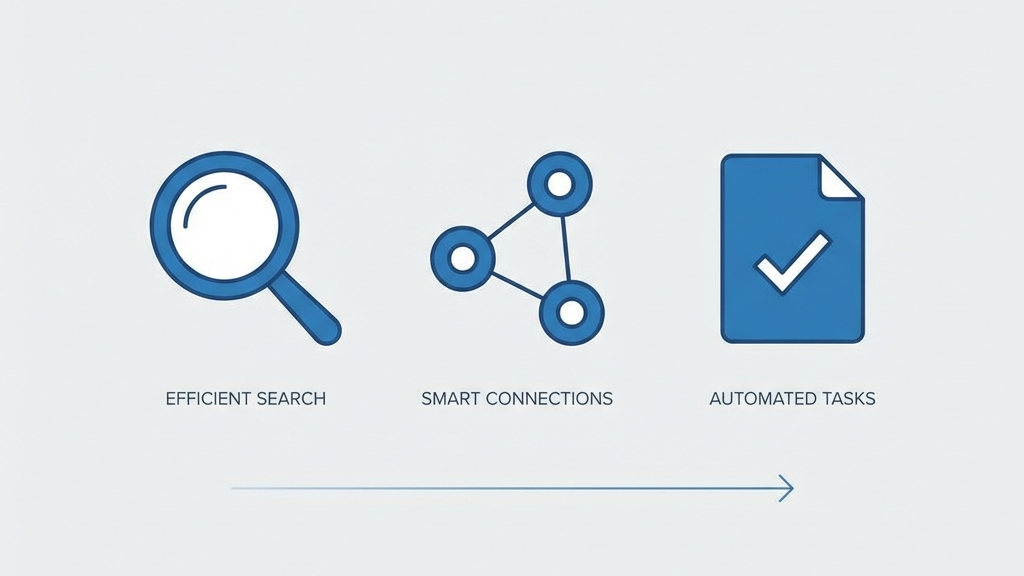
- Reading and understanding markdown content
- Creating new notes with proper formatting
- Finding patterns across many notes
- Generating summaries and syntheses
- Reorganizing files based on content
- Answering questions from your knowledge base
⚠️ Current Limitations:
- No real-time sync: Cowork works with files on disk; it doesn't hook into Obsidian's live state
- No graph analysis: Can't read Obsidian's graph view data (but can analyze links in markdown)
- No plugin awareness: Doesn't know about Dataview queries, Templater scripts, etc.
- Local vault access needs Desktop: Editing a vault folder on your computer requires Claude Desktop open and connected; cloud sessions alone do not reach that disk path
🔮 Where This Is Heading:
As Cowork matures, expect:
- Integration with Obsidian plugins via MCP
- More sophisticated multi-file operations
- Memory of your preferences across sessions
Update: June 2026 — What Has Arrived Since This Article
This article was first published on January 14, 2026. Several of the "future directions" listed above have since shipped. Here is what is now available and how it changes the Obsidian workflow.
Plugins: Role-Specific Bundles
The biggest change is the Plugins system. Anthropic shipped 11 official plugins, including a Productivity plugin that is directly relevant to Obsidian users. It bundles task management, daily planning, and persistent memory of your work context — capabilities that previously required manual Skill configuration.
For Obsidian specifically, the Productivity plugin's persistent memory means Cowork can remember your vault structure, your preferred note format, and your tagging conventions across sessions. You no longer need to re-explain your setup every time. The plugin encodes that context once.
You can also customize plugins. Because they are file-based and open-source, you can adapt the Productivity plugin to your specific Obsidian workflow — your folder structure, your frontmatter conventions, your review cadence. See our Plugins guide for customization instructions.
MCP Integration: Now a Reality
The "integration with Obsidian plugins via MCP" we predicted is now practical. MCP (Model Context Protocol) servers for common Obsidian-adjacent tools — Zotero, local databases, file system bridges — are available and connect reliably. The connector stability issues from the January launch have been resolved.
This means you can now connect Cowork to your Zotero library directly, without the manual file-copying workaround described in the "Automated Pipeline" section above. New papers tagged in Zotero become available to Cowork through the MCP connector, and Cowork can create Obsidian notes from them automatically.
Remote Sessions and Local Vault Access
A task that edits a local Obsidian vault needs the computer awake and Claude Desktop open. Dispatch lets Pro and Max users assign that desktop task from the Claude mobile app, but it does not make the local vault available while the laptop sleeps. Use a remote Cowork session only when the needed files have been uploaded or saved to your Claude account.
What Has Not Changed
The core limitations listed above still apply. Cowork does not read Obsidian's graph view data directly — it analyzes links in the markdown text, which is a close but not identical approximation. It does not execute Dataview queries or Templater scripts. If your workflow depends heavily on those plugins, you still need to work around them by exporting the data Cowork needs into plain markdown first.
Updated Getting Started Flow
- Install the Productivity plugin from the Plugins marketplace — it gives you persistent memory and task management out of the box.
- Grant Cowork access to your Obsidian vault folder in Claude Desktop, and keep Desktop connected while the task runs.
- If you use Zotero, set up the Zotero MCP connector so new papers flow in automatically.
- Start with read-only queries to verify the connection, then graduate to file creation and organization.
- For long local tasks, keep the computer awake and use Dispatch only if you want to steer the desktop task from your phone.
Getting Started Today
Ready to transform your Obsidian vault?
- Use a supported paid Claude plan with Cowork access (Pro, Max, Team, or Enterprise)
- Open Claude Desktop on Mac or Windows and keep it connected for vault work
- Navigate to the Cowork tab
- Grant access to your Obsidian vault folder
- Start with simple read queries: "What topics do my notes cover?"
- Gradually expand to file creation and organization
The combination of Obsidian's powerful linking structure and Cowork's file intelligence creates something greater than either alone: a knowledge base that truly works with you.
Related Reading
- What Is Claude Cowork? — Complete feature overview and capabilities
- Getting Started with Cowork — Step-by-step setup guide
- Safety Tips for Cowork — Best practices for file access permissions
- Claude Cowork Review — First impressions from a product expert
- Claude Cowork comparisons — How Cowork compares to other knowledge-work agents
This guide was written based on hands-on testing with Claude Cowork and Obsidian. Last updated August 12, 2026.